
- ASIC
- Battery management ICs
- Clocks and timing solutions
- ESD and surge protection devices
- Automotive Ethernet
- Evaluation Boards
- High reliability
- Isolation
- Memories
- Microcontroller
- Power
- RF
- Security and smart card solutions
- Sensor technology
- Small signal transistors and diodes
- Transceivers
- Universal Serial Bus (USB)
- Wireless connectivity
- Search Tools
- Technology
- Packages
- Product Information
- Ordering
- Overview
- Automotive Ethernet Bridges
- Automotive Ethernet PHY for in-vehicle networking
- Automotive Ethernet Switches for in-vehicle networking
- Overview
- Defense
- High-reliability custom services
- NewSpace
- Space
- Overview
- Embedded flash IP solutions
- Flash+RAM MCP solutions
- F-RAM (Ferroelectric RAM)
- NOR flash
- nvSRAM (non-volatile SRAM)
- PSRAM (Pseudostatic RAM)
- Radiation hardened and high-reliability memories
- SRAM (static RAM)
- Wafer and die memory solutions
- Overview
- 32-bit FM Arm® Cortex® Microcontroller
- 32-bit AURIX™ TriCore™ microcontroller
- 32-bit PSOC™ Arm® Cortex® microcontroller
- 32-bit TRAVEO™ T2G Arm® Cortex® microcontroller
- 32-bit XMC™ industrial microcontroller Arm® Cortex®-M
- Legacy microcontroller
- MOTIX™ MCU | 32-bit motor control SoC based on Arm® Cortex®-M
- Sensing controllers
- Overview
- AC-DC power conversion
- Automotive conventional powertrain ICs
- Class D audio amplifier ICs
- Contactless power and sensing ICs
- DC-DC converters
- Diodes and thyristors (Si/SiC)
- Gallium nitride (GaN)
- Gate driver ICs
- IGBTs – Insulated gate bipolar transistors
- Intelligent power modules (IPM)
- LED driver ICs
- Motor control ICs
- Power MOSFETs
- Power modules
- Power supply ICs
- Protection and monitoring ICs
- Silicon carbide (SiC)
- Smart power switches
- Solid state relays
- Wireless charging ICs
- Overview
- Antenna cross switches
- Antenna tuners
- Bias and control
- Coupler
- Driver amplifiers
- High Reliability Discrete
- Low noise amplifiers (LNAs)
- RF diode
- RF switches
- RF transistors
- Wireless control receiver
- Overview
- Calypso® products
- CIPURSE™ products
- Contactless memories
- OPTIGA™ embedded security solutions
- SECORA™ security solutions
- Security controllers
- Smart card modules
- Smart solutions for government ID
- Overview
- ToF 3D image sensors
- Current sensors
- Gas sensors
- Inductive position sensors
- MEMS microphones
- Pressure sensors
- Radar sensors
- Magnetic position sensors
- Magnetic speed sensors
- Overview
- Bipolar transistors
- Diodes
- Small signal/small power MOSFET
- Overview
- Automotive transceivers
- Control communication
- Powerline communications
- Overview
- USB 2.0 peripheral controllers
- USB 3.2 peripheral controllers
- USB hub controllers
- USB PD high-voltage microcontrollers
- USB-C AC-DC and DC-DC charging solutions
- USB-C charging port controllers
- USB-C Power Delivery controllers
- Overview
- AIROC™ Automotive wireless
- AIROC™ Bluetooth® and multiprotocol
- AIROC™ connected MCU
- AIROC™ Wi-Fi + Bluetooth® combos
- Overview
- Commercial off-the-shelf (COTs) memory portfolio
- Defense memory portfolio
- High-reliability power conversion and management
- Overview
- Rad hard microwave and RF
- Radiation hardened power
- Space memory portfolio
- Overview
- Parallel NOR flash
- SEMPER™ NOR flash family
- SEMPER™ X1 LPDDR flash
- Serial NOR flash
- Overview
- FM0+ 32-bit Arm® Cortex®-M0+ microcontroller (MCU) families
-
FM3 32-bit Arm® Cortex®-M3 microcontroller (MCU) families
- Overview
- FM3 CY9AFx1xK series Arm® Cortex®-M3 microcontroller (MCU)
- FM3 CY9AFx1xL/M/N series Arm® Cortex®-M3 microcontroller (MCU)
- FM3 CY9AFx2xK/L series Arm® Cortex®-M3 microcontroller (MCU)
- FM3 CY9AFx3xK/L series ultra-low leak Arm® Cortex®-M3 microcontroller (MCU)
- FM3 CY9AFx4xL/M/N series low power Arm® Cortex®-M3 microcontroller (MCU)
- FM3 CY9AFx5xM/N/R series low power Arm® Cortex®-M3 microcontroller (MCU)
- FM3 CY9AFxAxL/M/N series ultra-low leak Arm® Cortex®-M3 microcontroller (MCU)
- FM3 CY9BFx1xN/R high-performance series Arm® Cortex®-M3 microcontroller (MCU)
- FM3 CY9BFx1xS/T high-performance series Arm® Cortex®-M3 microcontroller (MCU)
- FM3 CY9BFx2xJ series Arm® Cortex®-M3 microcontroller (MCU)
- FM3 CY9BFx2xK/L/M series Arm® Cortex®-M3 microcontroller (MCU)
- FM3 CY9BFx2xS/T series Arm® Cortex®-M3 microcontroller (MCU)
-
FM4 32-bit Arm® Cortex®-M4 microcontroller (MCU) families
- Overview
- FM4 CY9BFx6xK/L high-performance series Arm® Cortex®-M4F microcontroller (MCU)
- FM4 CY9BFx6xM/N/R high-performance series Arm® Cortex®-M4F microcontroller (MCU)
- FM4 S6E2C high-performance series Arm® Cortex®-M4F microcontroller (MCU)
- FM4 S6E2G series connectivity Arm® Cortex®-M4F microcontroller (MCU)
- FM4 S6E2H high-performance series Arm® Cortex®-M4F microcontroller (MCU)
- Overview
-
32-bit TriCore™ AURIX™ – TC2x
- Overview
- AURIX™ family – TC21xL
- AURIX™ family – TC21xSC (wireless charging)
- AURIX™ family – TC22xL
- AURIX™ family – TC23xL
- AURIX™ family – TC23xLA (ADAS)
- AURIX™ family – TC23xLX
- AURIX™ family – TC264DA (ADAS)
- AURIX™ family – TC26xD
- AURIX™ family – TC27xT
- AURIX™ family – TC297TA (ADAS)
- AURIX™ family – TC29xT
- AURIX™ family – TC29xTT (ADAS)
- AURIX™ family – TC29xTX
- AURIX™ TC2x emulation devices
-
32-bit TriCore™ AURIX™ – TC3x
- Overview
- AURIX™ family - TC32xLP
- AURIX™ family – TC33xDA
- AURIX™ family - TC33xLP
- AURIX™ family – TC35xTA (ADAS)
- AURIX™ family – TC36xDP
- AURIX™ family – TC37xTP
- AURIX™ family – TC37xTX
- AURIX™ family – TC38xQP
- AURIX™ family – TC39xXA (ADAS)
- AURIX™ family – TC39xXX
- AURIX™ family – TC3Ex
- AURIX™ TC37xTE (emulation devices)
- AURIX™ TC39xXE (emulation devices)
- 32-bit TriCore™ AURIX™ – TC4x
- Overview
- PSOC™ 4 Arm® Cortex®-M0/M0+
- PSOC™ 4 HV Arm® Cortex®-M0+
- PSOC™ 5 LP Arm® Cortex®-M3
- PSOC™ 6 Arm® Cortex®-M4/M0+
- PSOC™ Multitouch Arm® Cortex®-M0
- PSOC™ Control Arm® Cortex®-M33
- PSOC™ Automotive 4: Arm® Cortex®-M0/M0+
- PSOC™ Edge Arm® Cortex® M55/M33
- Overview
- 32-bit TRAVEO™ T2G Arm® Cortex® for body
- 32-bit TRAVEO™ T2G Arm® Cortex® for cluster
- Overview
- 32-bit XMC1000 industrial microcontroller Arm® Cortex®-M0
- 32-bit XMC4000 industrial microcontroller Arm® Cortex®-M4
- XMC5000 Industrial Microcontroller Arm® Cortex®-M4F
- 32-bit XMC7000 Industrial Microcontroller Arm® Cortex®-M7
- Overview
- Legacy 32-bit MCU
- Legacy 8-bit/16-bit microcontroller
- Other legacy MCUs
- Overview
- AC-DC integrated power stage - CoolSET™
- AC-DC PWM-PFC controller
- Overview
- Bridge rectifiers & AC switches
- CoolSiC™ Schottky diodes
- Diode bare dies
- Silicon diodes
- Thyristor / Diode Power Modules
- Thyristor soft starter modules
- Thyristor/diode discs
- Overview
- Automotive gate driver ICs
- Isolated Gate Driver ICs
- Gate driver ICs for GaN HEMTs
- Level-Shift Gate Driver ICs
- Low-Side Drivers
- Transformer Driver ICs
- Overview
- AC-DC LED driver ICs
- Ballast IC
- DC-DC LED driver IC
- LED dimming interface IC
- Linear LED driver IC
- LITIX™ - Automotive LED Driver IC
- NFC wireless configuration IC with PWM output
- VCSEL driver
- Overview
- 32-bit PSOC™ Control Arm® Cortex®-M33 MCU
- iMOTION™ Integrated motor control solutions
- MOTIX™ MCU | 32-bit motor control SoC based on Arm® Cortex®-M
- MOTIX™ motor control ICs for BLDC motors
- MOTIX™ motor control ICs for brushed DC motors
- MOTIX™ multi half-bridge ICs for servo and stepper motors
- Overview
- Automotive MOSFET
- Dual MOSFETs
- MOSFET (Si & SiC) Modules
- N-channel depletion mode MOSFET
- N-channel MOSFETs
- P-channel MOSFETs
- Silicon carbide CoolSiC™ MOSFETs
- Small signal/small power MOSFET
- Overview
- Automotive transceivers
- Linear Voltage Regulators for Automotive Applications
- OPTIREG™ PMIC
- OPTIREG™ switcher
- OPTIREG™ System Basis Chips (SBC)
- Overview
- eFuse
-
High-side switches
- Overview
- Classic PROFET™ 12V | Automotive smart high-side switch
- Classic PROFET™ 24V | Automotive smart high-side switch
- Power PROFET™ + 12/24/48V | Automotive smart high-side switch
- PROFET™ + 12V | Automotive smart high-side switch
- PROFET™ + 24V | Automotive smart high-side switch
- PROFET™ + 48V | Automotive smart high-side switch
- PROFET™ +2 12V | Automotive smart high-side switch
- PROFET™ Industrial | Smart high-side switch
- PROFET™ Wire Guard 12V | Automotive eFuse
- Low-side switches
- Multichannel SPI Switches & Controller
- Overview
- Radar sensors for automotive
- Radar sensors for IoT
- Overview
- EZ-USB™ CX3 MIPI CSI2 to USB 3.0 camera controller
- EZ-USB™ FX10 & FX5N USB 10Gbps peripheral controller
- EZ-USB™ FX20 USB 20 Gbps peripheral controller
- EZ-USB™ FX3 USB 5 Gbps peripheral controller
- EZ-USB™ FX3S USB 5 Gbps peripheral controller with storage interface
- EZ-USB™ FX5 USB 5 Gbps peripheral controller
- EZ-USB™ SD3 USB 5 Gbps storage controller
- EZ-USB™ SX3 FIFO to USB 5 Gbps peripheral controller
- Overview
- EZ-PD™ CCG3 USB type-C port controller PD
- EZ-PD™ CCG3PA USB-C and PD
- EZ-PD™ CCG3PA-NFET USB-C PD controller
- EZ-PD™ CCG7x consumer USB-C Power Delivery & DC-DC controller
- EZ-PD™ PAG1: power adapter generation 1
- EZ-PD™ PAG2: Power Adapter Generation 2
- EZ-PD™ PAG2-PD USB-C PD Controller
- Overview
- EZ-PD™ ACG1F one-port USB-C controller
- EZ-PD™ CCG2 USB Type-C port controller
- EZ-PD™ CCG3PA Automotive USB-C and Power Delivery controller
- EZ-PD™ CCG4 two-port USB-C and PD
- EZ-PD™ CCG5 dual-port and CCG5C single-port USB-C PD controllers
- EZ-PD™ CCG6 one-port USB-C & PD controller
- EZ-PD™ CCG6_CFP and EZ-PD™ CCG8_CFP Dual-Single-Port USB-C PD
- EZ-PD™ CCG6DF dual-port and CCG6SF single-port USB-C PD controllers
- EZ-PD™ CCG7D Automotive dual-port USB-C PD + DC-DC controller
- EZ-PD™ CCG7S Automotive single-port USB-C PD solution with a DC-DC controller
- EZ-PD™ CCG7SAF Automotive Single-port USB-C PD + DC-DC Controller + FETs
- EZ-PD™ CCG8 dual-single-port USB-C PD
- EZ-PD™ CMG1 USB-C EMCA controller
- EZ-PD™ CMG2 USB-C EMCA controller with EPR
- LATEST IN
- Aerospace and defense
- Automotive
- Consumer electronics
- Health and lifestyle
- Home appliances
- Industrial
- Information and Communication Technology
- Renewables
- Robotics
- Security solutions
- Smart home and building
- Solutions
- Overview
- Defense applications
- Space applications
- Overview
- 48 V systems for EVs & mild hybrids
- ADAS & autonomous driving
- Automotive body electronics & power distribution
- Automotive LED lighting systems
- Chassis control & safety
- Electric vehicle drivetrain system
- EV thermal management system
- Internal combustion drivetrain systems
- In-vehicle infotainment & HMI
- Light electric vehicle solutions
- Overview
- Power adapters and chargers
- Complete system solutions for smart TVs
- Mobile device and smartphone solutions
- Multicopters and drones
- Power tools
- Semiconductor solutions for home entertainment applications
- Smart conference systems
- Overview
- Adapters and chargers
- Asset Tracking
- Battery formation and testing
- Electric forklifts
- Battery energy storage (BESS)
- EV charging
- High voltage solid-state power distribution
- Industrial automation
- Industrial motor drives and controls
- Industrial robots system solutions for Industry 4.0
- LED lighting system design
- Light electric vehicle solutions
- Power tools
- Power transmission and distribution
- Traction
- Uninterruptible power supplies (UPS)
- Overview
- Data center and AI data center solutions
- Edge computing
- Telecommunications infrastructure
- Machine Learning Edge AI
- Overview
- Battery formation and testing
- EV charging
- Hydrogen
- Photovoltaic
- Wind power
- Solid-state circuit breaker
- Battery energy storage (BESS)
- Overview
- Device authentication and brand protection
- Embedded security for the Internet of Things (IoT)
- eSIM applications
- Government identification
- Mobile security
- Payment solutions
- Access control and ticketing
- Overview
- Domestic robots
- Heating ventilation and air conditioning (HVAC)
- Home and building automation
- PC accessories
- Semiconductor solutions for home entertainment applications
- Overview
- Battery management systems (BMS)
- Connectivity
- Human Machine Interface
- Machine Learning Edge AI
- Motor control
- Power conversion
- Security
- Sensor solutions
- System diagnostics and analytics
- Overview
- Automotive auxiliary systems
- Automotive gateway
- Automotive power distribution
- Body control modules (BCM)
- Comfort & convenience electronics
- Zonal DC-DC converter 48 V-12 V
- Zone control unit
- Overview
- Automotive animated LED lighting system
- Automotive LED front single light functions
- Automotive LED rear single light functions
- Full LED headlight system - multi-channel LED driver
- LED drivers (electric two- & three-wheelers)
- LED pixel light controller - supply & communication
- Static interior ambient LED light
- Overview
- Active suspension control
- Airbag system
- Automotive braking solutions
- Automotive steering solutions
- Chassis domain control
- Reversible seatbelt pretensioner
- Overview
-
Automotive BMS
- Overview
- Automotive battery cell monitoring & balancing
- Automotive battery control unit (BCU)
- Automotive battery isolated communication
- Automotive battery management system (BMS) - 12 V to 24 V
- Automotive battery management system (BMS) - 48 V
- Automotive battery management system (BMS) - high-voltage
- Automotive battery pack monitoring
- Automotive battery passport & event logging
- Automotive battery protection & disconnection
- Automotive current sensing & coulomb counting
- BMS (electric two- & three-wheelers)
- EV charging
- EV inverters
- EV power conversion & OBC
- FCEV powertrain system
- Overview
- Automatic transmission hydraulic system
- Belt starter generator 48 V – inverter ISG
- Diesel direct injection
- Double-clutch transmission electrical control
- Double-clutch transmission hydraulic control
- Gasoline direct injection
- Multi-port fuel injection
- Small 1-cylinder combustion engine solution
- Small engine starter kit
- Transfer case brushed DC
- Transfer case brushless DC (BLDC)
- Overview
- Automotive head unit
- Automotive USB-C power & data solution
- Automotive instrument cluster
- Automotive telematics control unit (TCU)
- Center information display (CID)
- High-performance cockpit controller
- In-cabin wireless charging
- Smart instrument cluster (electric two- & three-wheelers)
- Overview
- E-bike solutions
- Two- & three-wheeler solutions
- Overview
- Audio amplifier solutions
- Complete system solutions for smart TVs
- Distribution audio amplifier unit solutions
- Home theater installation speaker system solutions
- Party speaker solutions
- PoE audio amplifier unit solutions
- Portable speaker solutions
- Powered active speaker systems
- Remote control
- Smart speaker designs
- Soundbar solutions
- Overview
- Data center and AI data center solutions
- Digital input/output (I/O) modules
- DIN rail power supply solutions
- Home and building automation
- Industrial HMI Monitors and Panels
- Industrial motor drives and controls
- Industrial PC
- Industrial robots system solutions for Industry 4.0
- Machine vision
- Mobile robots (AGV, AMR)
- Programmable logic controller (PLC)
- Solid-state circuit breaker
- Uninterruptible power supplies (UPS)
- Overview
- 48 V intermediate bus converter (IBC)
- AI accelerator cards
- AMD server CPUs
- Ampere CPUs
- FPGAs in datacenter applications
- Intel server CPUs
- Networking and switch platforms
- Power path protection
- Power system reliability modeling
- RAID storage
- Server battery backup units (BBU)
- Server power supply
- SmartNIC cards
- Overview
- AC-DC power conversion for telecommunications infrastructure
- DC-DC power conversion for telecommunications infrastructure
- FPGA in wired and wireless telecommunications applications
- Satellite communications
- Power system reliability modeling
- RF front end components for telecommunications infrastructure
- Overview
-
AC-DC power conversion
- Overview
- AC-DC auxiliary power supplies
- AC-DC power conversion for telecommunications infrastructure
- Adapters and chargers
- Automotive LED lighting systems
- Complete system solutions for smart TVs
- Desktop power supplies
- EV charging
- Industrial power supplies
- PoE power sourcing equipment (PSE)
- Server power supply units (PSU)
- Uninterruptible power supplies (UPS)
- DC-DC power conversion
- Overview
- Power supply health monitoring
- LATEST IN
- Digital documentation
- Evaluation boards
- Finder & selection tools
- Platforms
- Services
- Simulation & Modeling
- Software
- Tools
- Partners
- Infineon for Makers
- University Alliance Program
- Overview
- Bipolar Discs Finder
- Bipolar Module Finder
- Connected Secure Systems Finder
- Diode Rectifier Finder
- ESD Protection Finder
- Evaluation Board Finder
- Gate Driver Finder
- IGBT Discrete Finder
- IGBT Module Finder
- IPM Finder
- Microcontroller Finder
- MOSFET Finder
- PMIC Finder
- Product Finder
- PSOC™ and FMx MCU Board & Kit Finder
- Radar Finder
- Reference Design Finder
- Simulation Model Finder
- Smart Power Switch Finder
- Transceiver Finder
- Voltage Regulator Finder
- Wireless Connectivity Board & Kit Finder
- Overview
- AIROC™ software & tools
- AURIX™ software & tools
- DRIVECORE for automotive software development
- iMOTION™ software & tools
- Infineon Smart Power Switches & Gate Driver Tool Suite
- MOTIX™ software & tools
- OPTIGA™ software & tools
- PSOC™ software & tools
- TRAVEO™ software & tools
- XENSIV™ software & tools
- XMC™ software & tools
- Overview
- CoolGaN™ Simulation Tool (PLECS)
- HiRel Fit Rate Tool
- Infineon Designer
- Interactive product sheet
- IPOSIM Online Power Simulation Platform
- InfineonSpice Offline Simulation Tool
- OPTIREG™ automotive power supply ICs Simulation Tool (PLECS)
- Power MOSFET Simulation Models
- PowerEsim Switch Mode Power Supply Design Tool
- Solution Finder
- XENSIV™ Magnetic Sensor Simulation Tool
- Overview
- AURIX™ certifications
- AURIX™ development tools
-
AURIX™ Embedded Software
- Overview
- AURIX™ Applications software
- AURIX™ Artificial Intelligence
- AURIX™ Gateway
- AURIX™ iLLD Drivers
- Infineon safety
- AURIX™ Security
- AURIX™ TC3xx Motor Control Application Kit
- AURIX™ TC4x SW application architecture
- Infineon AUTOSAR
- Communication and Connectivity
- Middleware
- Non AUTOSAR OS/RTOS
- OTA
- AURIX™ Microcontroller Kits
- Overview
- TRAVEO™ Development Tools
- TRAVEO™ Embedded Software
- Overview
- XENSIV™ Development Tools
- XENSIV™ Embedded Software
- XENSIV™ evaluation boards
- Overview
- CAPSENSE™ Controllers Code Examples
- Memories for Embedded Systems Code Examples
- PSOC™ 1 Code Examples for PSOC™ Designer
- PSOC™ 3 Code Examples for PSOC™ Creator
- PSOC™ 3/4/5 Code Examples
- PSOC™ 4 Code Examples for PSOC™ Creator
- PSOC™ 6 Code Examples for PSOC™ Creator
- PSOC™ 63 Code Examples
- USB Controllers Code Examples
- Overview
- DEEPCRAFT™ AI Hub
- DEEPCRAFT™ Audio Enhancement
- DEEPCRAFT™ Model Converter
-
DEEPCRAFT™ Ready Models
- Overview
- DEEPCRAFT™ Ready Model for Baby Cry Detection
- DEEPCRAFT™ Ready Model for Cough Detection
- DEEPCRAFT™ Ready Model for Direction of Arrival (Sound)
- DEEPCRAFT™ Ready Model for Factory Alarm Detection
- DEEPCRAFT™ Ready Model for Fall Detection
- DEEPCRAFT™ Ready Model for Gesture Classification
- DEEPCRAFT™ Ready Model for Siren Detection
- DEEPCRAFT™ Ready Model for Snore Detection
- DEEPCRAFT™ Studio
- DEEPCRAFT™ Voice Assistant
- Overview
- AIROC™ Wi-Fi & Bluetooth EZ-Serial Module Firmware Platform
- AIROC™ Wi-Fi & Bluetooth Linux and Android Drivers
- emWin Graphics Library and GUI for PSOC™
- Infineon Complex Device Driver for Battery Management Systems
- Memory Solutions Hub
- PSOC™ 6 Peripheral Driver Library (PDL) for PSOC™ Creator
- USB Controllers EZ-USB™ GX3 Software and Drivers
- Overview
- CAPSENSE™ Controllers Configuration Tools EZ-Click
- DC-DC Integrated POL Voltage Regulators Configuration Tool – PowIRCenter
- EZ-USB™ SX3 Configuration Utility
- FM+ Configuration Tools
- FMx Configuration Tools
- Tranceiver IC Configuration Tool
- USB EZ-PD™ Configuration Utility
- USB EZ-PD™ Dock Configuration Utility
- USB EZ-USB™ HX3C Blaster Plus Configuration Utility
- USB UART Config Utility
- XENSIV™ Tire Pressure Sensor Programming
- Overview
- EZ-PD™ CCGx Dock Software Development Kit
-
FMx Softune IDE
- Overview
- RealOS™ Real-Time Operating System
- Softune IDE Language tools
- Softune Workbench
- Tool Lineup for F2MC-16 Family SOFTUNE V3
- Tool Lineup for F2MC-8FX Family SOFTUNE V3
- Tool Lineup for FR Family SOFTUNE V6
- Virtual Starter Kit
- Windows 10 operation of released SOFTUNE product
- Windows 7 operation of released SOFTUNE product
- Windows 8 operation of released SOFTUNE product
- ModusToolbox™ Software
- PSOC™ Creator Software
- Radar Development Kit
- RUST
- USB Controllers SDK
- Wireless Connectivity Bluetooth Mesh Helper Applications
- XMC™ DAVE™ Software
- Overview
- AIROC™ Bluetooth® Connect App Archive
- Cypress™ Programmer Archive
- EZ-PD™ CCGx Power Software Development Kit Archive
- ModusToolbox™ Software Archive
- PSOC™ Creator Archive
- PSOC™ Designer Archive
- PSOC™ Programmer Archive
- USB EZ-PD™ Configuration Utility Archives
- USB EZ-PD™ Host SDK Archives
- USB EZ-USB™ FX3 Archive
- USB EZ-USB™ HX3PD Configuration Utility Archive
- WICED™ Smart SDK Archive
- WICED™ Studio Archive
- Overview
- Infineon Developer Center Launcher
- Infineon Register Viewer
- Pin and Code Wizard
- Timing Solutions
- Wireless Connectivity
- LATEST IN
- Support
- Training
- Developer Community
- News
Business & Financial Press
Feb 10, 2026
Business & Financial Press
Feb 04, 2026
Quarterly Report
Feb 04, 2026
Business & Financial Press
Feb 03, 2026
- Company
- Our stories
- Events
- Press
- Investor
- Careers
- Quality
- Latest news
Business & Financial Press
Feb 10, 2026
Business & Financial Press
Feb 04, 2026
Quarterly Report
Feb 04, 2026
Business & Financial Press
Feb 03, 2026
Find My Ecosystem

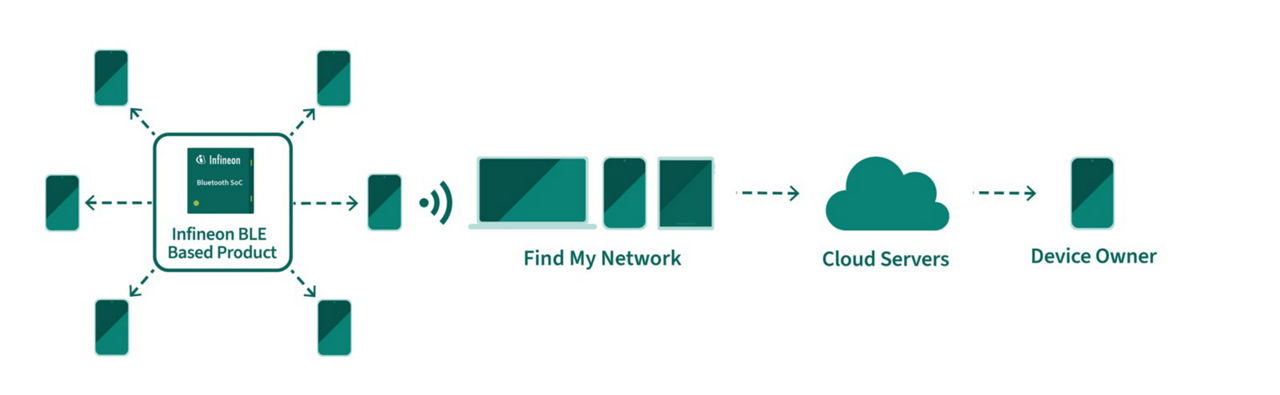
Finding lost devices has always been a problem, and as we collect more and more smart devices and electronic gadgets, the risk of losing a device increases and the cost of replacing them goes up. GPS trackers are expensive and difficult to work with. However, with the proliferation of mobile phones in the World, there are now multiple crowdsourced networks consisting of many millions of devices that can be used to find lost devices.
Apple and Google both provide extensive crowdsourced networks that we can tap into when we are locating a device, and the key common element here is Bluetooth. With a tag or device that is enabled with Bluetooth LE, we can connect into the Apple Find My® or Find My network and use one of these networks to communicate the location of the device back to an app on the owner’s mobile phone. By supporting more than one network, we not only provide support for more phones, but we also increase the chance that a lost device can connect to some other device that is part of one of these networks, providing a medium for the information to get back to the owner.
Apple and Google both have specifications or SDKs that enable devices to communicate with their networks to allow the owner of the device to locate their device using Find My or Find My networks. The Apple Find My® network consists of iOS, iPadOS and mac OS devices with the Find My feature enabled. The Find My network consists of Android devices with the Find My feature enabled.
The location of the tracked item is displayed in the owner’s app for whichever of the ecosystems is applicable. These apps may have additional functionality to locate and protect the users’ devices and prohibit unwanted tracking, such as the option to play a sound on the tracked device. These networks use Bluetooth LE to broadcast a signal that can be picked up by nearby Apple or Android phone on the relevant network.
The networks cannot be enabled simultaneously, as for example, the user will have either an Android or Apple smart phone, so that would dictate which of those Find My networks could be used. Apple specifically disallows registration on another tracking network when using their Find My service.
Infineon has software released to support both device tracking networks on its Bluetooth MCUs, in particular the CYW20829, PSOC 63 Bluetooth LE MCU, CYW5591x, and CYW5551x and PSOC™ 63 parts. Some of this software can only be made available directly to customers due to licencing conditions, so please contact us if you are interested. More details on this can be found in the links below, as well as how to get development kits.
To learn more about CYW20829, PSOC 63 Bluetooth LE MCU, CYW5591x, and CYW5551x, click here.
To learn more about CYW5591x, click here.
To learn more about CYW5551x, click here.
To learn more about PSOC™ 63, click here.
To learn more about Apple Find My®, click here.
To learn more about Find My, click here.
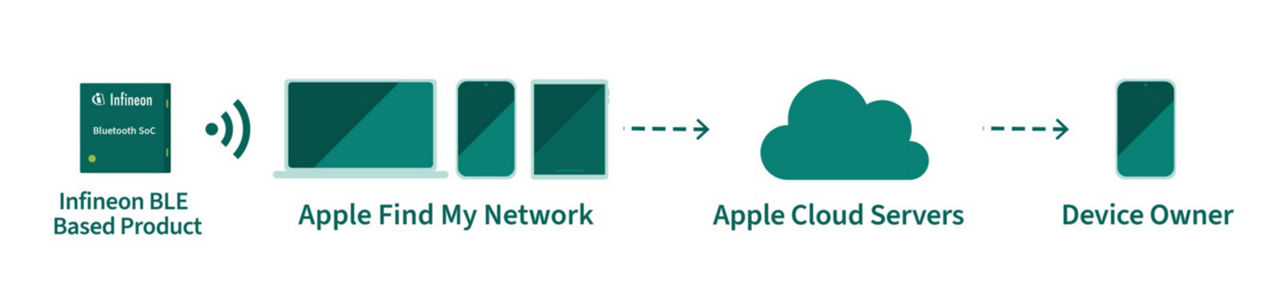
Apple has created a Find My™ network of millions of devices that uses Bluetooth technology to find missing items and communicate their location to the owner using the Find My™ app on iPhone®, Mac®, iPad®, iPod touch®, or the Find Items app on Apple Watch®.
By using messages that are end-to-end encrypted and anonymous, neither Apple, third-party manufacturers nor any other 3rd party can access an item’s location or information. The implementation includes a feature, ‘detecting unwanted location trackers’ (DULT) which adopts best practices and protocols for accessory manufacturers whose products have built-in location-tracking capabilities. By including this feature, a location-tracking accessory will be compatible with unwanted tracking detection and alerts on mobile platforms.
The Apple Find My® network consists of iOS, iPadOS and mac OS devices with the Find My feature enabled.
The Find My network was previously accessible only to items that had an Apple AirTag attached to them. Anyone could purchase an Apple AirTag and attach it to something of value to them so that they could track it if it was lost. The AirTag sends out a secure Bluetooth signal that nearby devices in the Find My network can detect. These devices then transmit the location of the AirTag to iCloud, allowing the user to use the Find My app on their iPhone, which would show it on a map.
Apple’s Find My network accessory program has opened the private and secure Find My network to third-party device manufacturers to build products to use the service, enabling their customers to use the Find My app to track and locate important devices. Now, this functionality is available to any device that contains the CYW20829 Bluetooth® LE MCU or PSOC™ 63 Bluetooth® LE MCU.
This functionality is enabled via an SDK that Apple makes available through Infineon Technologies, and which can be built into a Bluetooth application for the CYW20829 or PSOC™ 63, allowing such devices to communicate through the Apple Find My® network to allow the owner of the device to locate their device using the Find My app on their Apple iPhone or other Apple device.
To start developing products to work within the Apple Find My® network you need access to the Find My SDK within ModusToolboxTM.
- You must first enrol in the Apple MFi Program – this is a requirement for Apple licensing
- Request access to Apple Find My® SDK from Infineon
- Create a case1 (Microsoft Dynamics) requesting access to Apple Find My® SDK
- This can be done by the customer directly or by an Infineon Field Applications Engineer (FAE) or Customer Applications Engineer (CAE)
- Include the MFi account number and name used to enrol in the MFi Program
- Create a case1 (Microsoft Dynamics) requesting access to Apple Find My® SDK
- Infineon will then request approval from Apple to provide the Apple Find My® SDK to you
- Using the supplied MFi account name and number
- Apple approves Infineon to supply Apple Find My® SDK to you
- Infineon provides a copy of Apple Find My® SDK to work on Infineon parts to you in response to the original case1
MFi Program
You must enrol in the MFi Program to access the technical specifications and resources needed to create your Apple Find My® enabled Bluetooth LE product for CYW20829 or PSOC™ 63 (see https://mfi.apple.com/). This is a pre-requisite for getting access to the Apple Find My® SDK to run for Infineon parts
Enrolling in the MFi program (see https://mfi.apple.com/en/enroll)
- Create an Apple Account using your business email address and submit an enrolment form.
- Complete company identity verification
- Execute an MFi license
Steps required to create an MFi accessory, from conception to production.
- Product Plan: Submit a Product Plan for an accessory that integrates MFi licensed technology.
- Development: Design, develop, and test the accessory. Procure any MFi components as needed.
- Certification: Use Apple’s certification tools to help ensure optimal user experience and interoperability. Submit production-ready samples and packaging materials for review.
- Mass Production: Upon completion of certification approved by Apple, begin manufacturing and sales.
- An MFI badge communicates to customers that an accessory has been certified by the developer to meet Apple performance standards.
What will I need to apply for the MFi Program? (see https://mfi.apple.com/en/faqs)
- Your contact information, including a business email address that matches your company's domain name
- A registered legal entity name
- Address for the company/organization's principal place of business or corporate headquarters (P.O. boxes not accepted)
- Company/organization domain name/email address and website
- Company D-U-N-S number
- The D-U-N-S Number is a unique nine-digit number that identifies business entities on a location-specific basis. Your D-U-N-S Number will be used to check the identity and legal entity status of your organization as part of the enrollment verification process for joining the MFi Program. Visit the D-U-N-S help pagefor more information.
- Depending on your company's location, a tax identification number
- A valid credit card or Apple Pay account
- The MFi Program is USD $99 (plus any applicable taxes and fees) per membership year.
Apple Find My® Certification
- Apple has an app, Find My Certification Asst., designed for use by MFi Licensees, who need to test their accessories’ interoperability with Apple’s Find My network.
- MFi Licensees can use Find My Certification Asst. to test the “discovery, connection and other key requirements” for their accessories that will incorporate Apple’s Find My network technology.
To learn more about Apple Find My®, click here.
Infineon Find My Products
To learn more about CYW20829, click here.
To learn more about PSOC™ 63, click here.
Google has created a network of millions of devices that uses Bluetooth technology to find missing items and communicate their location to the owner using the Find My app on Android devices. By using messages that are end-to-end encrypted and anonymous, neither Google, third-party manufacturers nor any other 3rd party can access an item’s location or information. There is also a feature to prevent unwanted tracking. The Find My network consists of all Android devices with the Find My feature enabled.
Google’s Find My network accessory program opens the private and secure Find My network to third-party device manufacturers to build products to use the service by developing software to their specification. A device that has the Find My feature enabled sends out a secure Bluetooth signal that nearby Android devices in the Find My network can detect. These devices then transmit the location of the device to the Google Cloud, allowing the user to use the Find My app on their Android phone, which would show it on a map.
By using messages that are end-to-end encrypted and anonymous, neither Apple, third-party manufacturers nor any other 3rd party can access an item’s location or information. The implementation includes a feature, ‘detecting unwanted location trackers’ (DULT) which adopts best practices and protocols for accessory manufacturers whose products have built-in location-tracking capabilities. By including this feature, a location-tracking accessory will be compatible with unwanted tracking detection and alerts on mobile platforms.
This functionality can be included for any Bluetooth device that contains a CYW20829 or PSoC6-BLE Bluetooth MCU. Infineon has developed the feature according to the Find My specification, and this can be built into a Bluetooth application for CYW20829 or PSoC6-BLE. This allows any Bluetooth device to communicate through the Find My network to allow the owner of the device to locate their device using the Find My app on their Android phone, tablet or other device.
To start developing products to work within the Find My network you can access to the Find My library from within ModusToolboxTM.
To learn more about Find My, click here.
Infineon Find My Products:
To learn more about CYW20829, click here.
To learn more about PSOC™ 63, click here.
Finding lost devices has always been a problem, and as we collect more and more smart devices and electronic gadgets, the risk of losing a device increases and the cost of replacing them goes up. GPS trackers are expensive and difficult to work with. However, with the proliferation of mobile phones in the World, there are now multiple crowdsourced networks consisting of many millions of devices that can be used to find lost devices.
Apple and Google both provide extensive crowdsourced networks that we can tap into when we are locating a device, and the key common element here is Bluetooth. With a tag or device that is enabled with Bluetooth LE, we can connect into the Apple Find My® or Find My network and use one of these networks to communicate the location of the device back to an app on the owner’s mobile phone. By supporting more than one network, we not only provide support for more phones, but we also increase the chance that a lost device can connect to some other device that is part of one of these networks, providing a medium for the information to get back to the owner.
Apple and Google both have specifications or SDKs that enable devices to communicate with their networks to allow the owner of the device to locate their device using Find My or Find My networks. The Apple Find My® network consists of iOS, iPadOS and mac OS devices with the Find My feature enabled. The Find My network consists of Android devices with the Find My feature enabled.
The location of the tracked item is displayed in the owner’s app for whichever of the ecosystems is applicable. These apps may have additional functionality to locate and protect the users’ devices and prohibit unwanted tracking, such as the option to play a sound on the tracked device. These networks use Bluetooth LE to broadcast a signal that can be picked up by nearby Apple or Android phone on the relevant network.
The networks cannot be enabled simultaneously, as for example, the user will have either an Android or Apple smart phone, so that would dictate which of those Find My networks could be used. Apple specifically disallows registration on another tracking network when using their Find My service.
Infineon has software released to support both device tracking networks on its Bluetooth MCUs, in particular the CYW20829, PSOC 63 Bluetooth LE MCU, CYW5591x, and CYW5551x and PSOC™ 63 parts. Some of this software can only be made available directly to customers due to licencing conditions, so please contact us if you are interested. More details on this can be found in the links below, as well as how to get development kits.
To learn more about CYW20829, PSOC 63 Bluetooth LE MCU, CYW5591x, and CYW5551x, click here.
To learn more about CYW5591x, click here.
To learn more about CYW5551x, click here.
To learn more about PSOC™ 63, click here.
To learn more about Apple Find My®, click here.
To learn more about Find My, click here.
Apple has created a Find My™ network of millions of devices that uses Bluetooth technology to find missing items and communicate their location to the owner using the Find My™ app on iPhone®, Mac®, iPad®, iPod touch®, or the Find Items app on Apple Watch®.
By using messages that are end-to-end encrypted and anonymous, neither Apple, third-party manufacturers nor any other 3rd party can access an item’s location or information. The implementation includes a feature, ‘detecting unwanted location trackers’ (DULT) which adopts best practices and protocols for accessory manufacturers whose products have built-in location-tracking capabilities. By including this feature, a location-tracking accessory will be compatible with unwanted tracking detection and alerts on mobile platforms.
The Apple Find My® network consists of iOS, iPadOS and mac OS devices with the Find My feature enabled.
The Find My network was previously accessible only to items that had an Apple AirTag attached to them. Anyone could purchase an Apple AirTag and attach it to something of value to them so that they could track it if it was lost. The AirTag sends out a secure Bluetooth signal that nearby devices in the Find My network can detect. These devices then transmit the location of the AirTag to iCloud, allowing the user to use the Find My app on their iPhone, which would show it on a map.
Apple’s Find My network accessory program has opened the private and secure Find My network to third-party device manufacturers to build products to use the service, enabling their customers to use the Find My app to track and locate important devices. Now, this functionality is available to any device that contains the CYW20829 Bluetooth® LE MCU or PSOC™ 63 Bluetooth® LE MCU.
This functionality is enabled via an SDK that Apple makes available through Infineon Technologies, and which can be built into a Bluetooth application for the CYW20829 or PSOC™ 63, allowing such devices to communicate through the Apple Find My® network to allow the owner of the device to locate their device using the Find My app on their Apple iPhone or other Apple device.
To start developing products to work within the Apple Find My® network you need access to the Find My SDK within ModusToolboxTM.
- You must first enrol in the Apple MFi Program – this is a requirement for Apple licensing
- Request access to Apple Find My® SDK from Infineon
- Create a case1 (Microsoft Dynamics) requesting access to Apple Find My® SDK
- This can be done by the customer directly or by an Infineon Field Applications Engineer (FAE) or Customer Applications Engineer (CAE)
- Include the MFi account number and name used to enrol in the MFi Program
- Create a case1 (Microsoft Dynamics) requesting access to Apple Find My® SDK
- Infineon will then request approval from Apple to provide the Apple Find My® SDK to you
- Using the supplied MFi account name and number
- Apple approves Infineon to supply Apple Find My® SDK to you
- Infineon provides a copy of Apple Find My® SDK to work on Infineon parts to you in response to the original case1
MFi Program
You must enrol in the MFi Program to access the technical specifications and resources needed to create your Apple Find My® enabled Bluetooth LE product for CYW20829 or PSOC™ 63 (see https://mfi.apple.com/). This is a pre-requisite for getting access to the Apple Find My® SDK to run for Infineon parts
Enrolling in the MFi program (see https://mfi.apple.com/en/enroll)
- Create an Apple Account using your business email address and submit an enrolment form.
- Complete company identity verification
- Execute an MFi license
Steps required to create an MFi accessory, from conception to production.
- Product Plan: Submit a Product Plan for an accessory that integrates MFi licensed technology.
- Development: Design, develop, and test the accessory. Procure any MFi components as needed.
- Certification: Use Apple’s certification tools to help ensure optimal user experience and interoperability. Submit production-ready samples and packaging materials for review.
- Mass Production: Upon completion of certification approved by Apple, begin manufacturing and sales.
- An MFI badge communicates to customers that an accessory has been certified by the developer to meet Apple performance standards.
What will I need to apply for the MFi Program? (see https://mfi.apple.com/en/faqs)
- Your contact information, including a business email address that matches your company's domain name
- A registered legal entity name
- Address for the company/organization's principal place of business or corporate headquarters (P.O. boxes not accepted)
- Company/organization domain name/email address and website
- Company D-U-N-S number
- The D-U-N-S Number is a unique nine-digit number that identifies business entities on a location-specific basis. Your D-U-N-S Number will be used to check the identity and legal entity status of your organization as part of the enrollment verification process for joining the MFi Program. Visit the D-U-N-S help pagefor more information.
- Depending on your company's location, a tax identification number
- A valid credit card or Apple Pay account
- The MFi Program is USD $99 (plus any applicable taxes and fees) per membership year.
Apple Find My® Certification
- Apple has an app, Find My Certification Asst., designed for use by MFi Licensees, who need to test their accessories’ interoperability with Apple’s Find My network.
- MFi Licensees can use Find My Certification Asst. to test the “discovery, connection and other key requirements” for their accessories that will incorporate Apple’s Find My network technology.
To learn more about Apple Find My®, click here.
Infineon Find My Products
To learn more about CYW20829, click here.
To learn more about PSOC™ 63, click here.
Google has created a network of millions of devices that uses Bluetooth technology to find missing items and communicate their location to the owner using the Find My app on Android devices. By using messages that are end-to-end encrypted and anonymous, neither Google, third-party manufacturers nor any other 3rd party can access an item’s location or information. There is also a feature to prevent unwanted tracking. The Find My network consists of all Android devices with the Find My feature enabled.
Google’s Find My network accessory program opens the private and secure Find My network to third-party device manufacturers to build products to use the service by developing software to their specification. A device that has the Find My feature enabled sends out a secure Bluetooth signal that nearby Android devices in the Find My network can detect. These devices then transmit the location of the device to the Google Cloud, allowing the user to use the Find My app on their Android phone, which would show it on a map.
By using messages that are end-to-end encrypted and anonymous, neither Apple, third-party manufacturers nor any other 3rd party can access an item’s location or information. The implementation includes a feature, ‘detecting unwanted location trackers’ (DULT) which adopts best practices and protocols for accessory manufacturers whose products have built-in location-tracking capabilities. By including this feature, a location-tracking accessory will be compatible with unwanted tracking detection and alerts on mobile platforms.
This functionality can be included for any Bluetooth device that contains a CYW20829 or PSoC6-BLE Bluetooth MCU. Infineon has developed the feature according to the Find My specification, and this can be built into a Bluetooth application for CYW20829 or PSoC6-BLE. This allows any Bluetooth device to communicate through the Find My network to allow the owner of the device to locate their device using the Find My app on their Android phone, tablet or other device.
To start developing products to work within the Find My network you can access to the Find My library from within ModusToolboxTM.
To learn more about Find My, click here.
Infineon Find My Products:
To learn more about CYW20829, click here.
To learn more about PSOC™ 63, click here.